Using Vendor Codes in QBO and DOKKA
Vendor codes provide bookkeepers with an extra layer of validation when working with suppliers. They are particularly helpful if a supplier exists multiple times in QuickBooks Online (QBO) or if several suppliers have similar names.
How to Set a Vendor Code in QBO
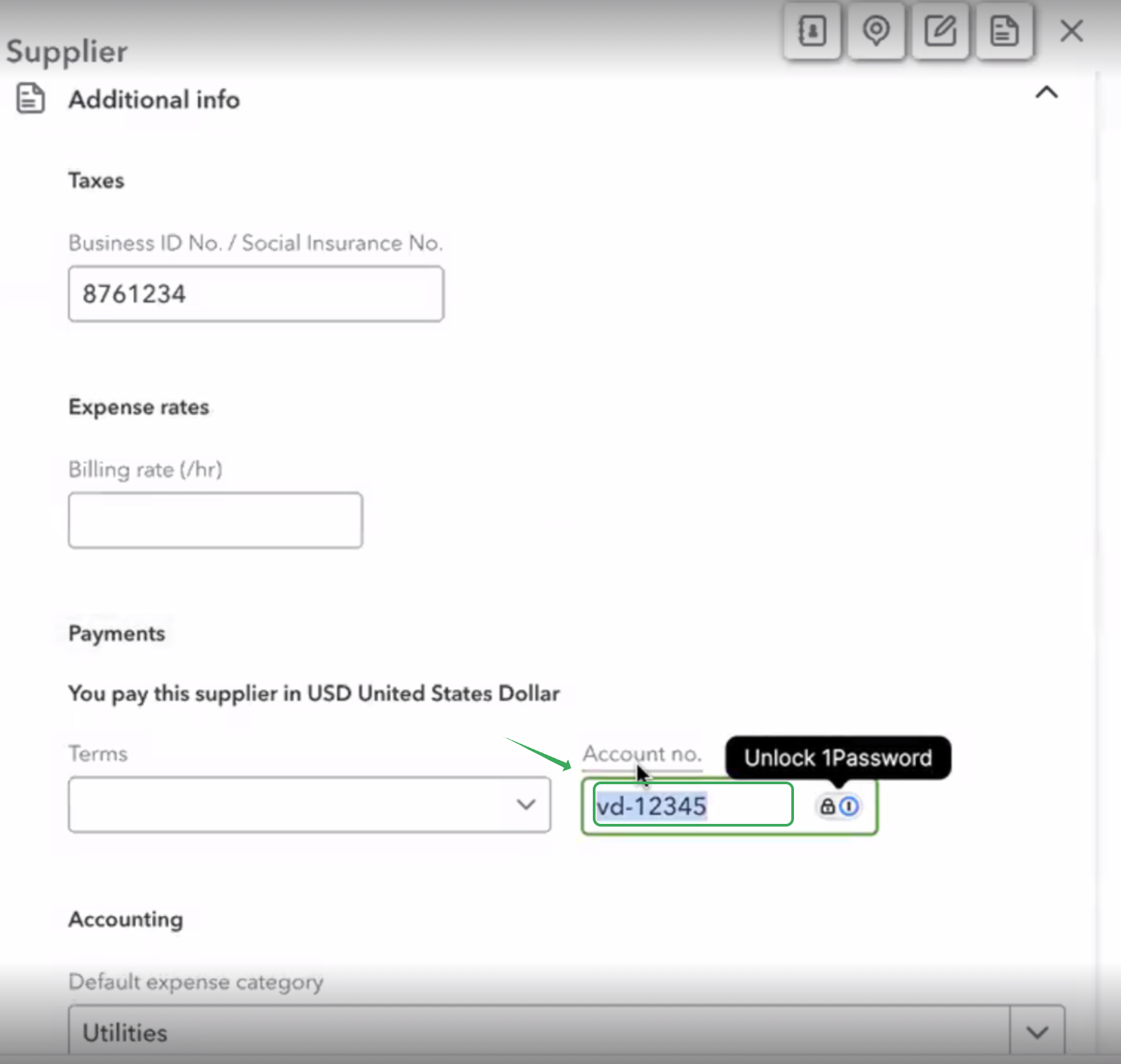
Open QuickBooks Online and navigate to the vendor’s profile.
Go to the Additional Info section.
In the Account No. field, enter the vendor code you’d like to assign and save your changes.
How to View Vendor Codes in DOKKA
If you want vendor codes to appear next to supplier names inside DOKKA:
Go to Company Settings → Integrations.
Enable the option "Use Account Codes"

Open any document and click Sync to refresh the data.

Once this is done, the vendor code will automatically display alongside each supplier’s name in your DOKKA environment.
Was this article helpful?
That’s Great!
Thank you for your feedback
Sorry! We couldn't be helpful
Thank you for your feedback
Feedback sent
We appreciate your effort and will try to fix the article